> For the complete documentation index, see [llms.txt](https://docs-v3.activeloop.ai/llms.txt). Markdown versions of documentation pages are available by appending `.md` to page URLs; this page is available as [Markdown](https://docs-v3.activeloop.ai/v3.9.0/setup/storage-and-creds/managed-credentials/amazon-web-services/provisioning-rbac.md).
# Provisioning Role-Based Access
How to provision Role-Based Access in S3
## Setting up Role-Based Access for AWS S3
The most secure method for connecting data from your AWS account to Deep Lake is using Federated Credentials and Role-Based Access, which are set up using the steps below:
### Step 1: Create the AWS IAM Policy
1\. Login to the AWS account where the IAM Role will be created and where the data is stored.
2\. Go to the IAM page in the AWS UI, which can be done by searching "IAM" in the console and locating the IAM page under Services.
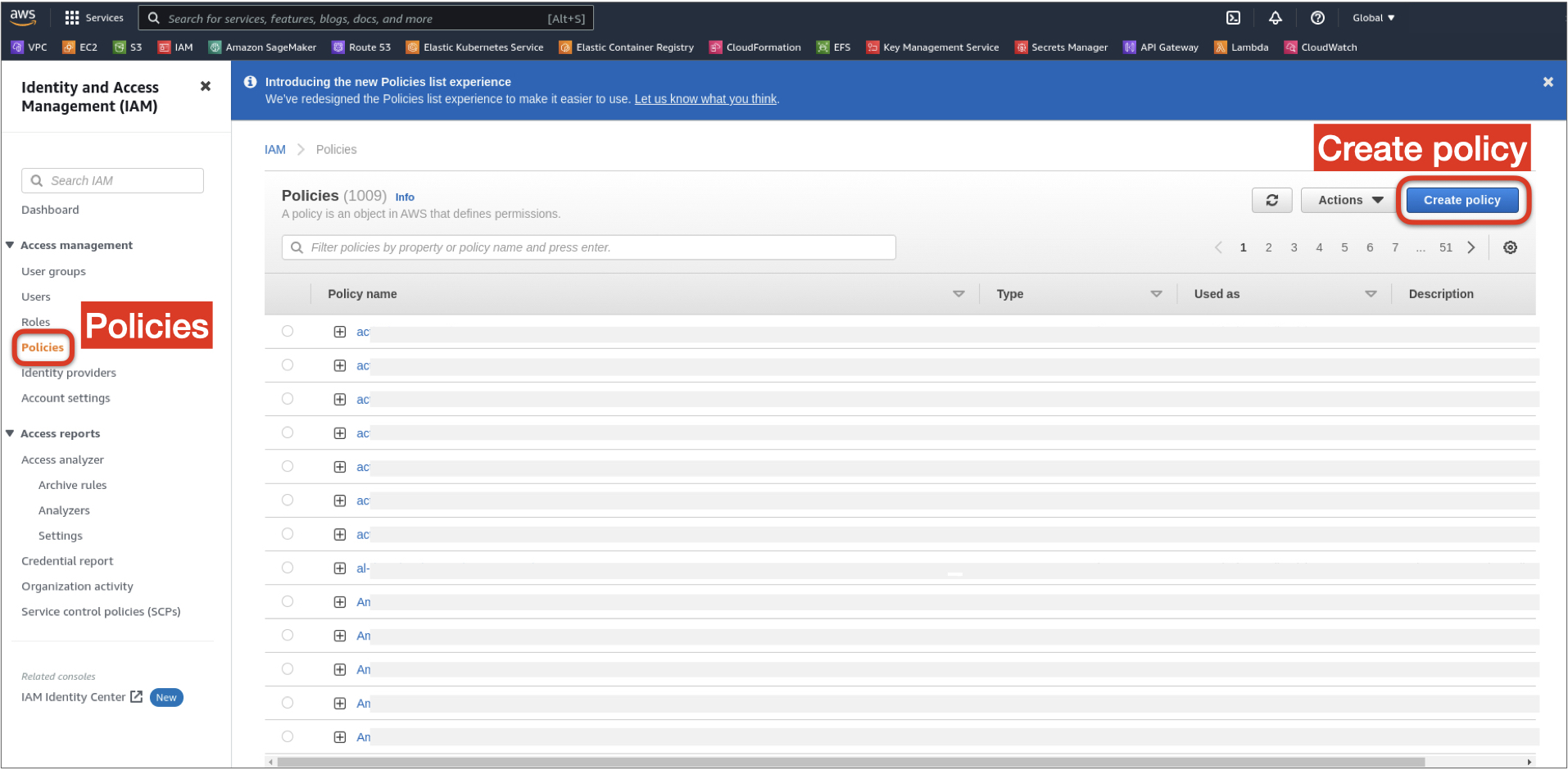
3\. In the left nav, open the `Policies` under `Access management` and on `Create policy` on the right.
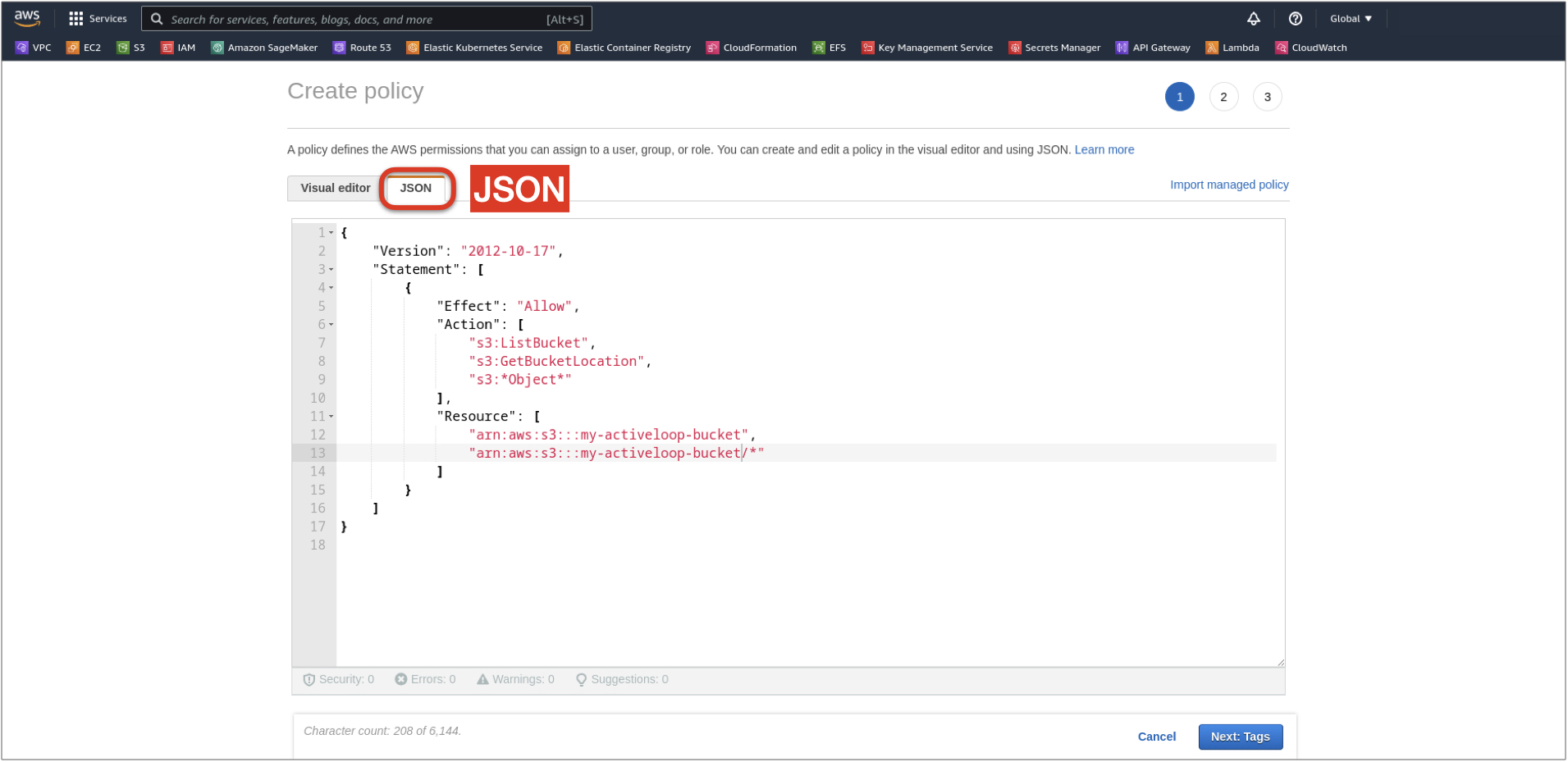
5\. Select the `JSON` tab instead of `Visual editor`.
6\. Replace the code in the editor with the code below. Replace `BUCKET_NAME` with the bucket names for which you want to grant role-based access:
```
{
"Version": "2012-10-17",
"Statement": [
{
"Effect": "Allow",
"Action": [
"s3:ListBucket",
"s3:GetBucketLocation",
"s3:GetObject",
"s3:PutObject",
"s3:DeleteObject"
],
"Resource": [
"arn:aws:s3:::BUCKET_NAME",
"arn:aws:s3:::BUCKET_NAME/*"
]
}
]
}
```
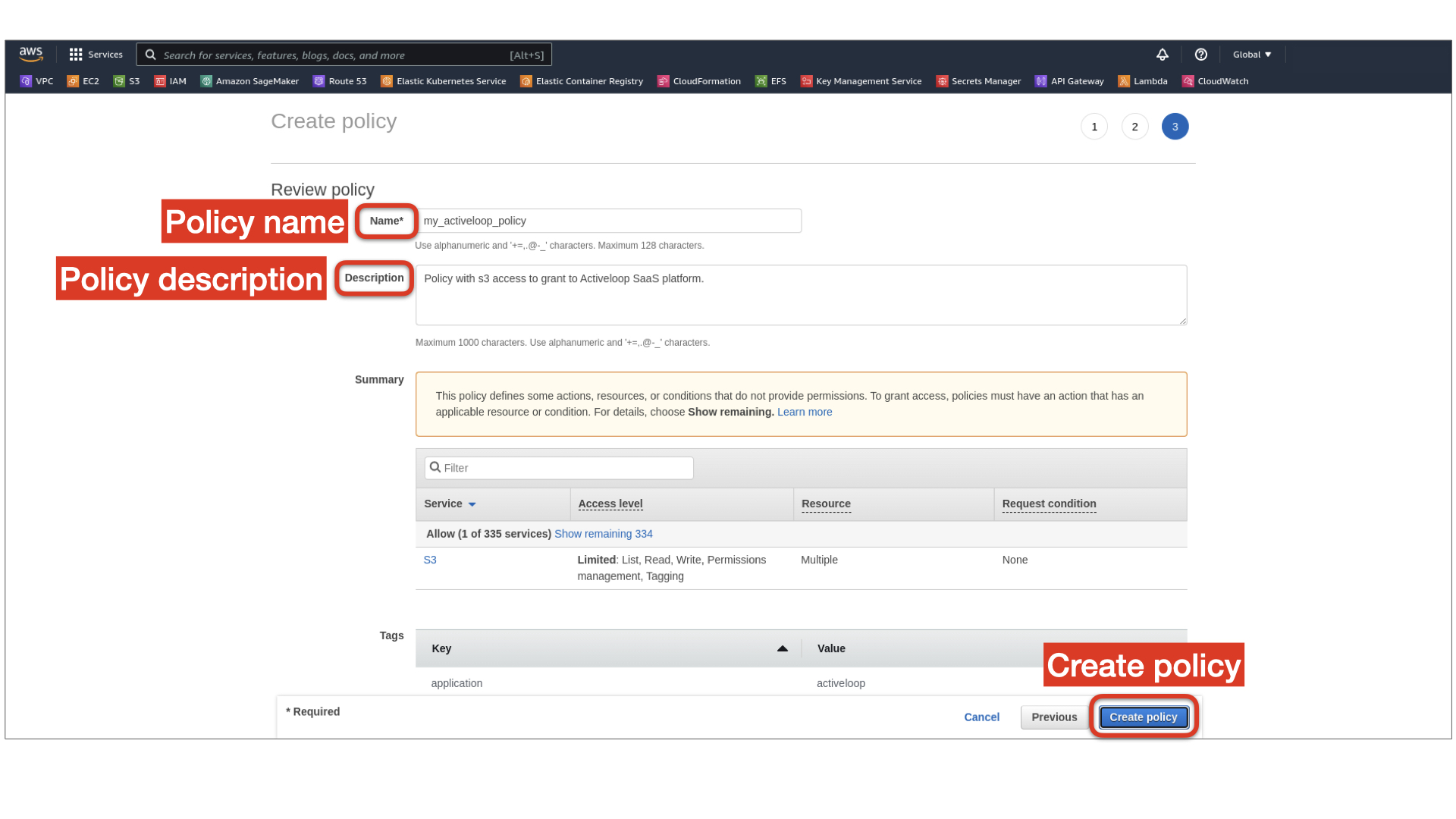
7\. On the bottom right, click `Next: Tags` (create tags if needed) and `Next: Preview`, enter the policy `name` and `description`, and click `Create policy`
### Step 2: Create the AWS IAM Role
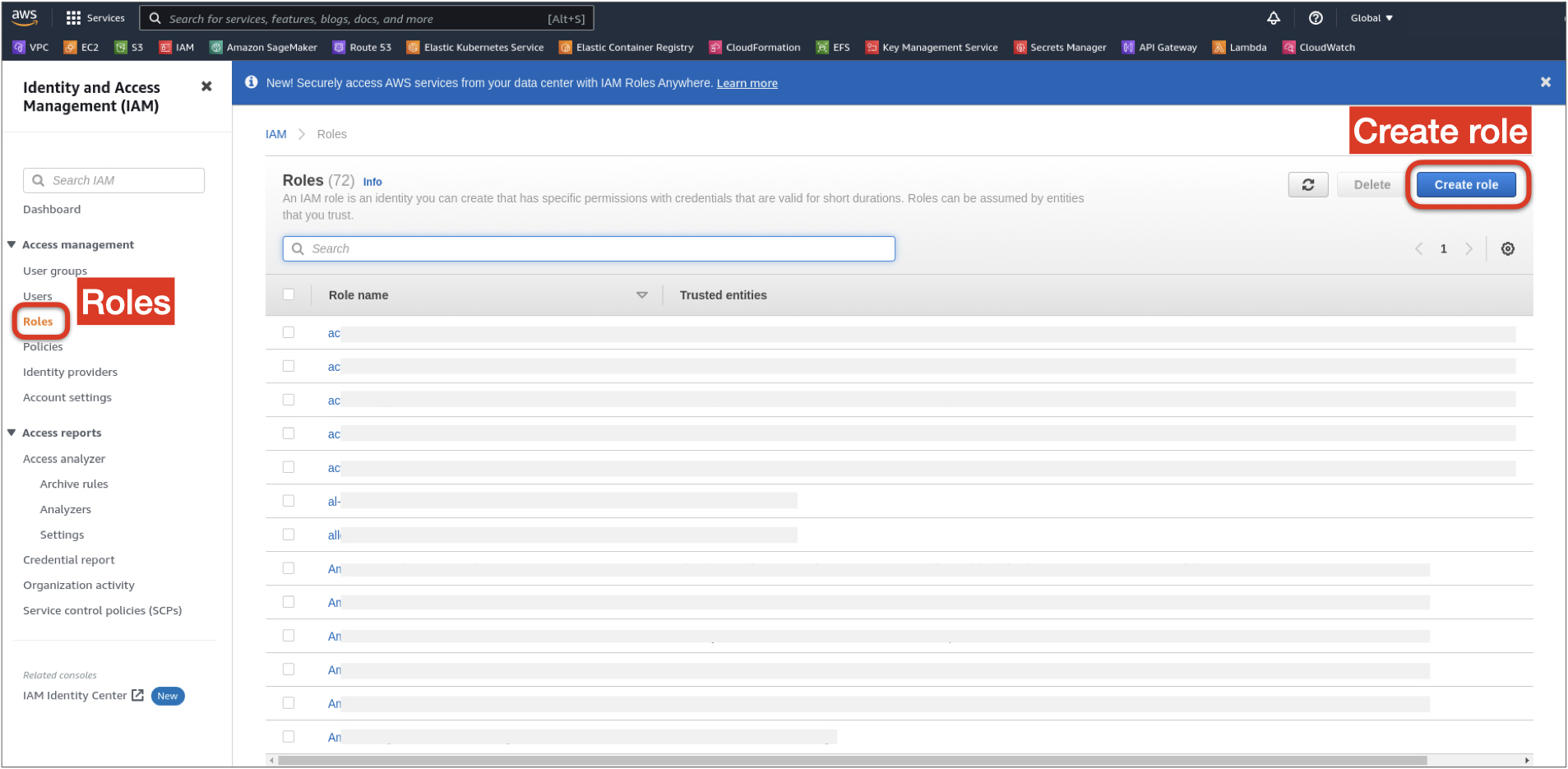
1\. On the `IAM` page, in the left nav, open the `Roles` under `Access management`, and click `Create role` on the right.
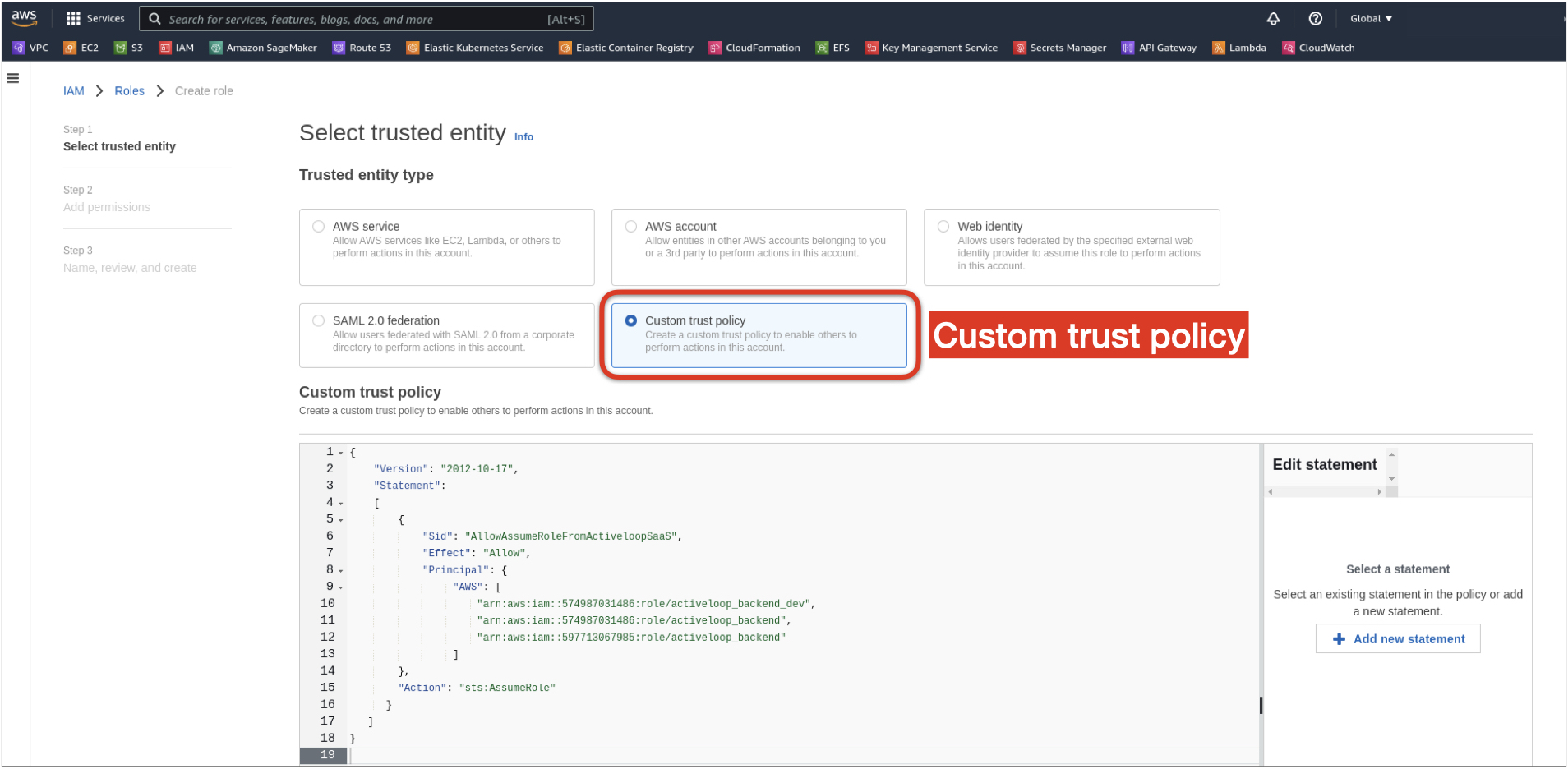
3\. Select `Custom trust policy` from the list of options.
4\. Replace the policy definition with the code below and click `Next`
```
{
"Version": "2012-10-17",
"Statement":
[
{
"Sid": "AllowAssumeRoleFromActiveloopSaaS",
"Effect": "Allow",
"Principal": {
"AWS": "arn:aws:iam::597713067985:role/activeloop_backend"
},
"Action": "sts:AssumeRole"
}
]
}
```
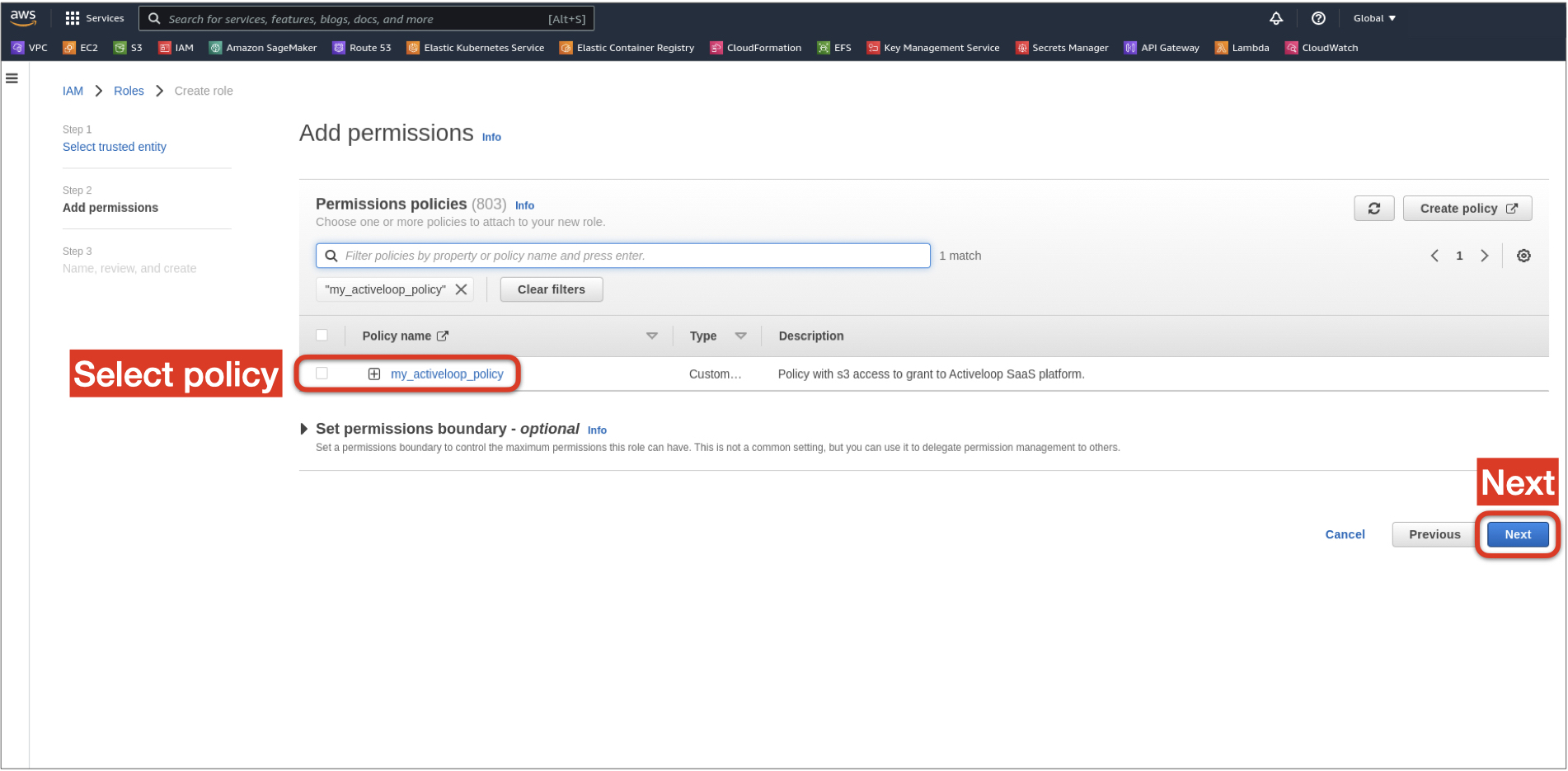
5\. From the provided policy list, select the previously created policy from Step 1 and click `Next`
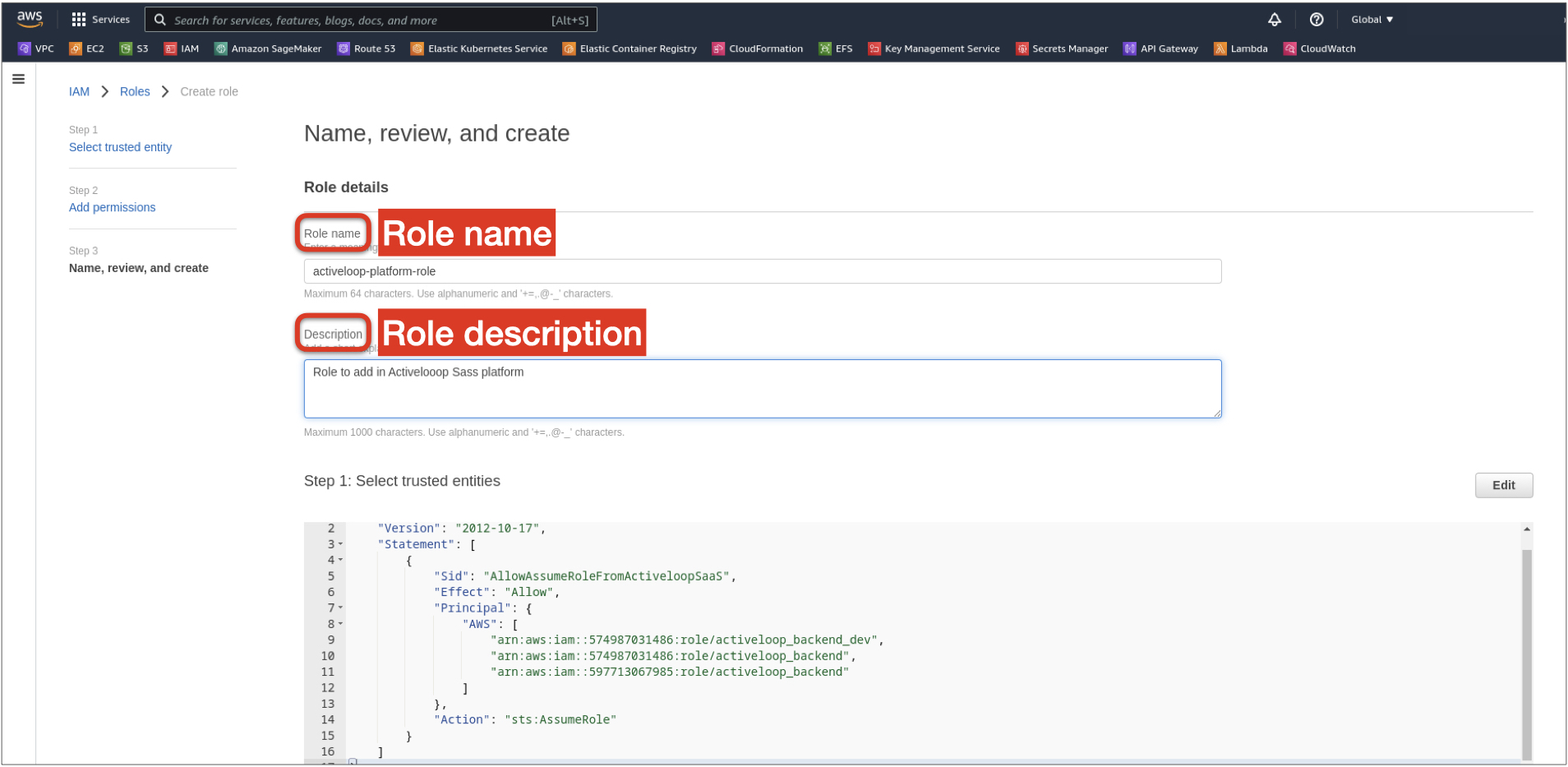
6\. Set the `name` and `description` for the role and click `Create role` at the bottom.
### Step 3: Grant Access to AWS KMS Key (**only for buckets that are encrypted with customer managed KMS keys**)
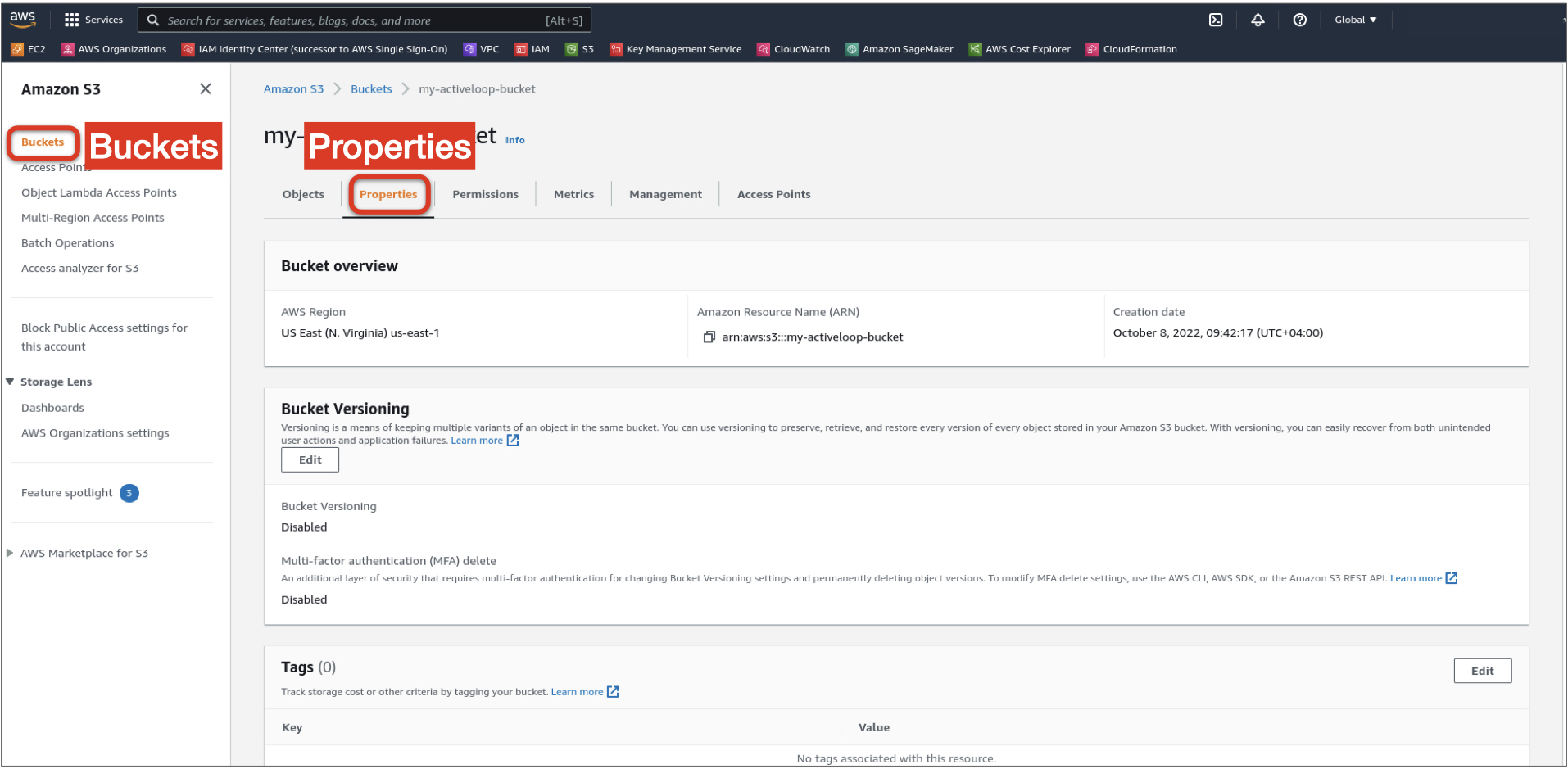
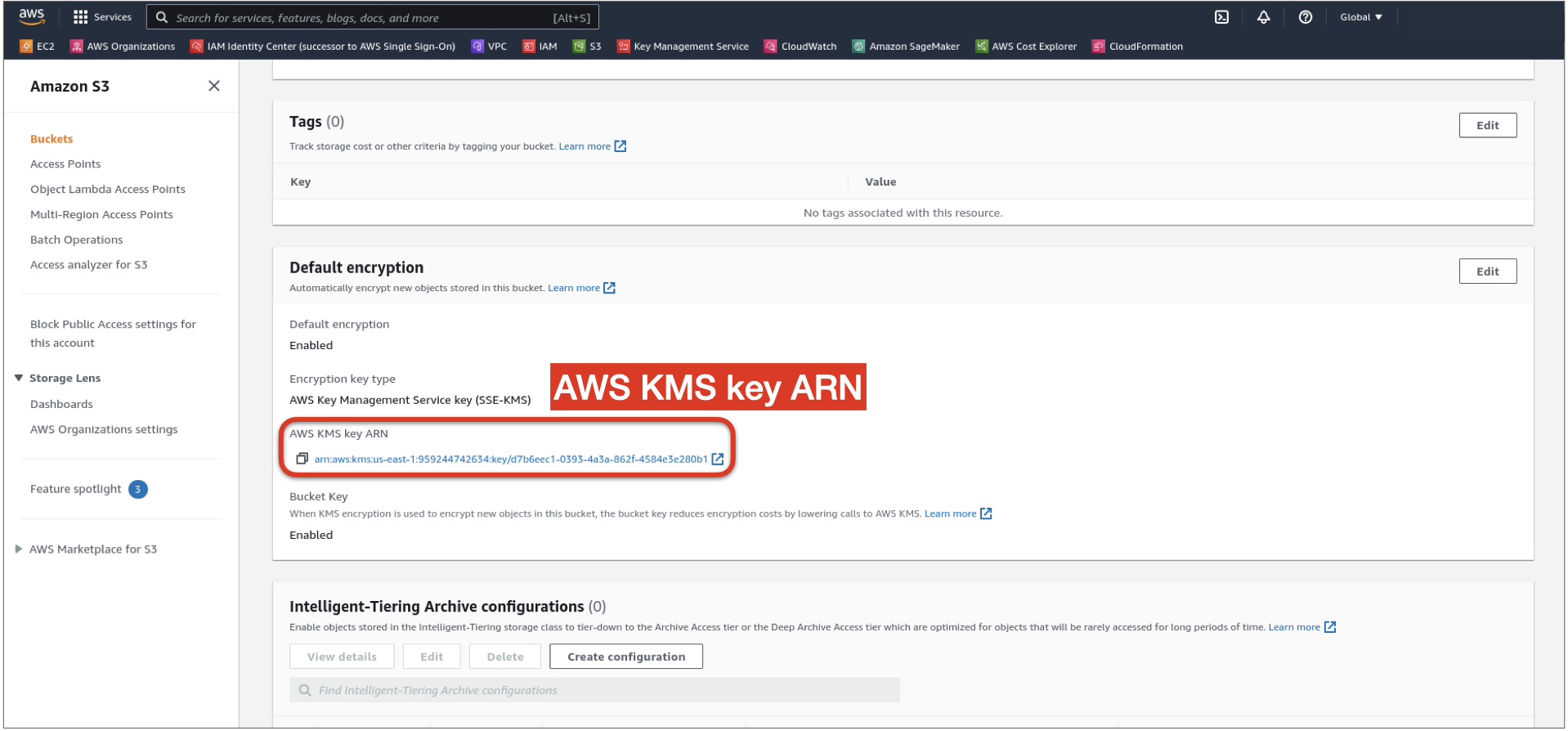
1\. Navigate to the bucket in the AWS S3 UI
2\. Open the bucket Properties
3\. Scroll down to Default encryption and copy the `AWS KMS key ARN`
4\. In the Policy creation step (Step 1, Sub-step 6), use the JSON below in the policy statement, and replace `YOUR_KMS_KEY_ARN` with the copied Key ARN for the encrypted bucket.
```
{
"Version": "2012-10-17",
"Statement": [
{
"Effect": "Allow",
"Action": [
"s3:ListBucket",
"s3:GetBucketLocation",
"s3:*Object*"
],
"Resource": [
"arn:aws:s3:::BUCKET_NAME",
"arn:aws:s3:::BUCKET_NAME/*"
]
},
{
"Effect": "Allow",
"Action": [
"kms:Encrypt",
"kms:Decrypt",
"kms:ReEncrypt*",
"kms:GenerateDataKey*",
"kms:DescribeKey"
],
"Resource": [
"YOUR_KMS_KEY_ARN”
]
}
]
}
```
### Step 4: Enter the created AWS Role ARN (Step 2) into the Activeloop UI
See the first video in the link below:
{% content-ref url="/pages/7GciXtjtKBOWPHmtkY7Z" %}
[Setting up Deep Lake in Your Cloud](/v3.9.0/setup/storage-and-creds/managed-credentials.md)
{% endcontent-ref %}