> For the complete documentation index, see [llms.txt](https://docs-v3.activeloop.ai/llms.txt). Markdown versions of documentation pages are available by appending `.md` to page URLs; this page is available as [Markdown](https://docs-v3.activeloop.ai/v3.7.3/storage-and-credentials/managed-credentials/microsoft-azure/provisioning-federated-credentials.md).
# Provisioning Federated Credentials
How to setup Federated Credentials in Azure
## Setting up Federated Credentials in Microsoft Azure
The most secure method for connecting data from your Azure storage to Deep Lake is using Federated Credentials, which are set up using the steps below:
### Step 1: Register Application Credentials with the Microsoft Identity Platform
1\. Login to the Azure account where the App will be registered and where the data is stored.
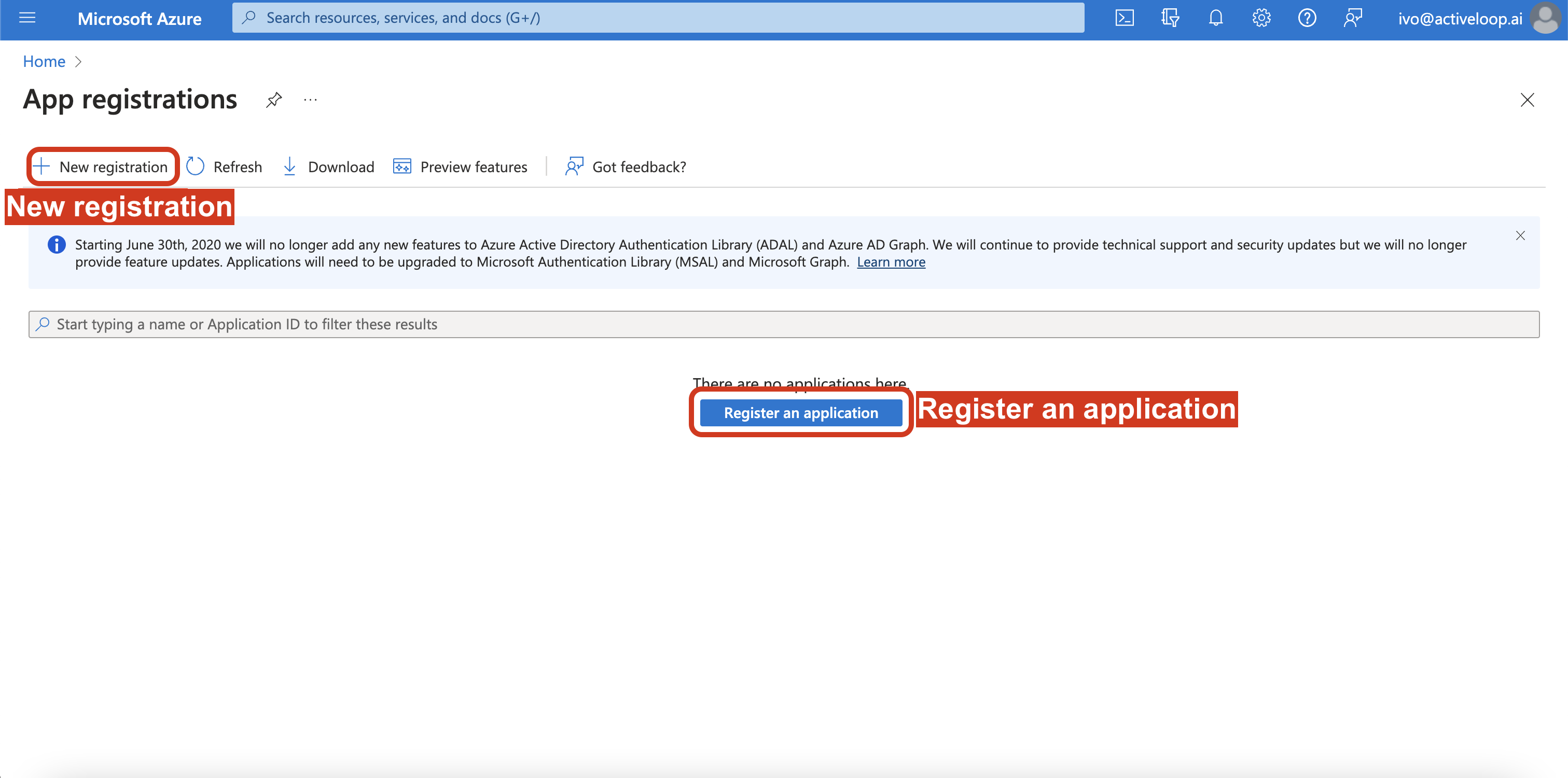
2\. Go to the `App Registrations` page in the Azure UI, which can be done by searching "App registrations" in the console.
3\. Click on `Register an application` or `New registration`.
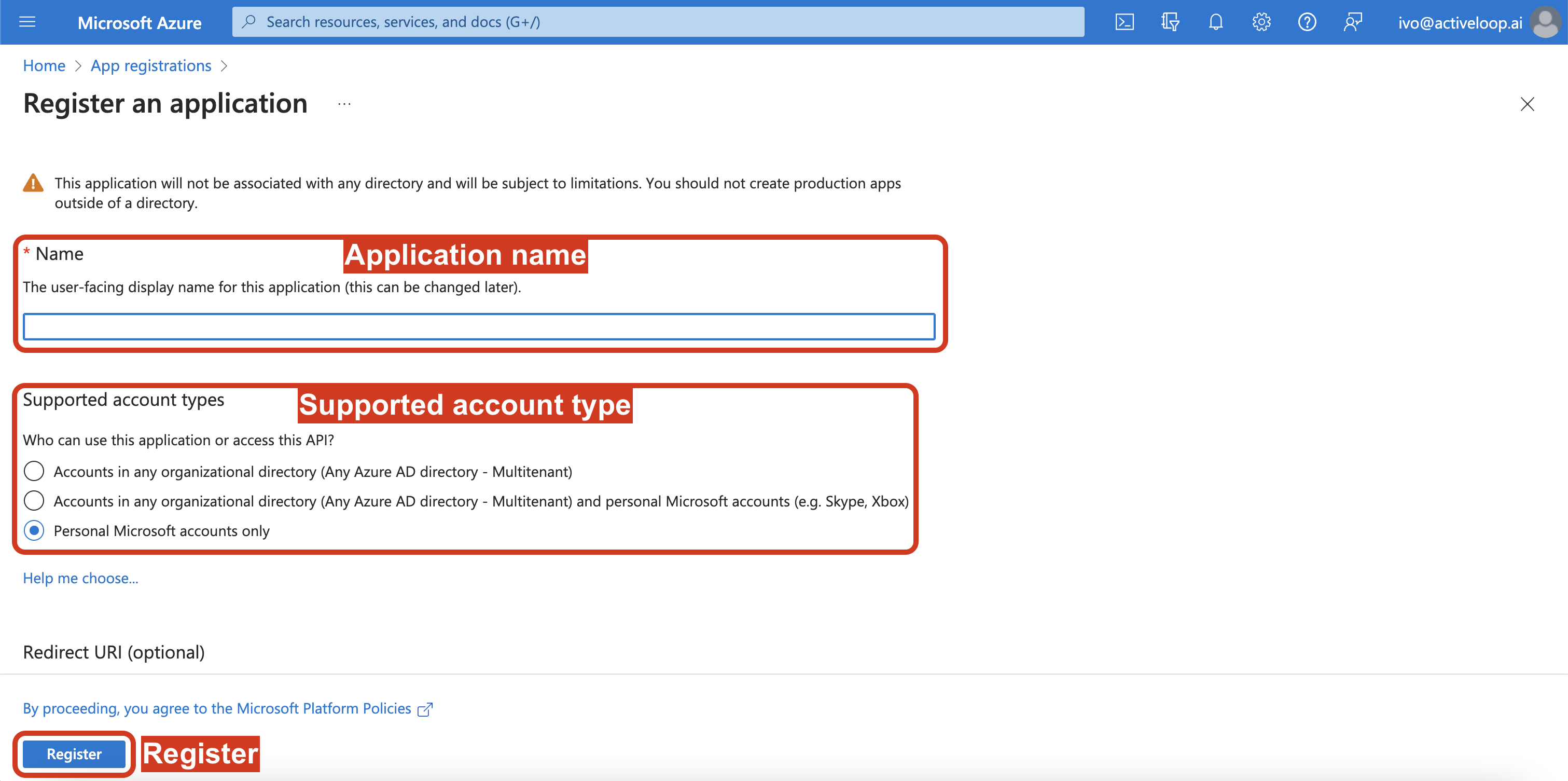
4\. Enter the `Name` and `Supported account type` (all are supported in Deep Lake) and click `Register`
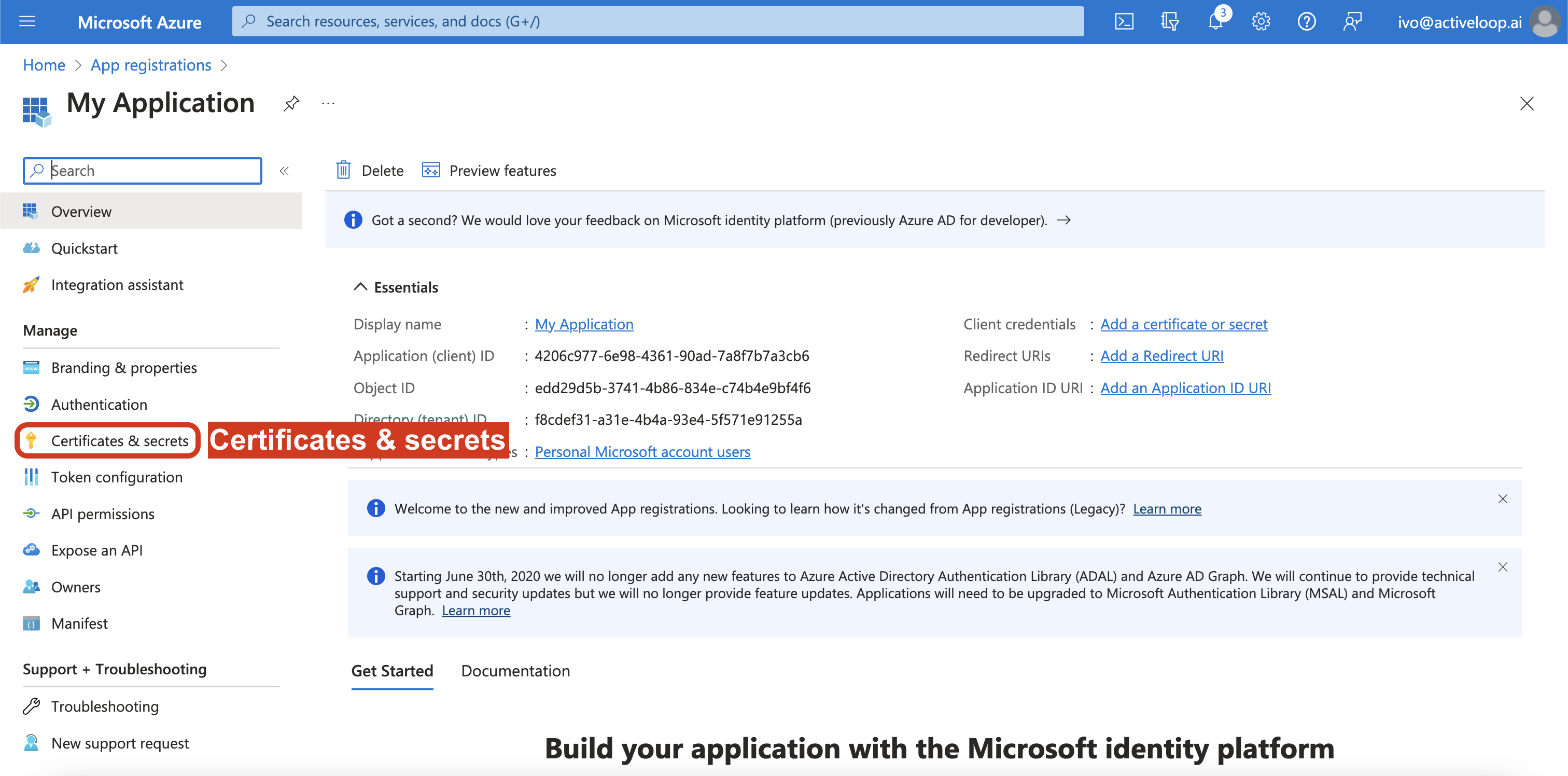
5\. In the application console, click `Certificates & secrets`.
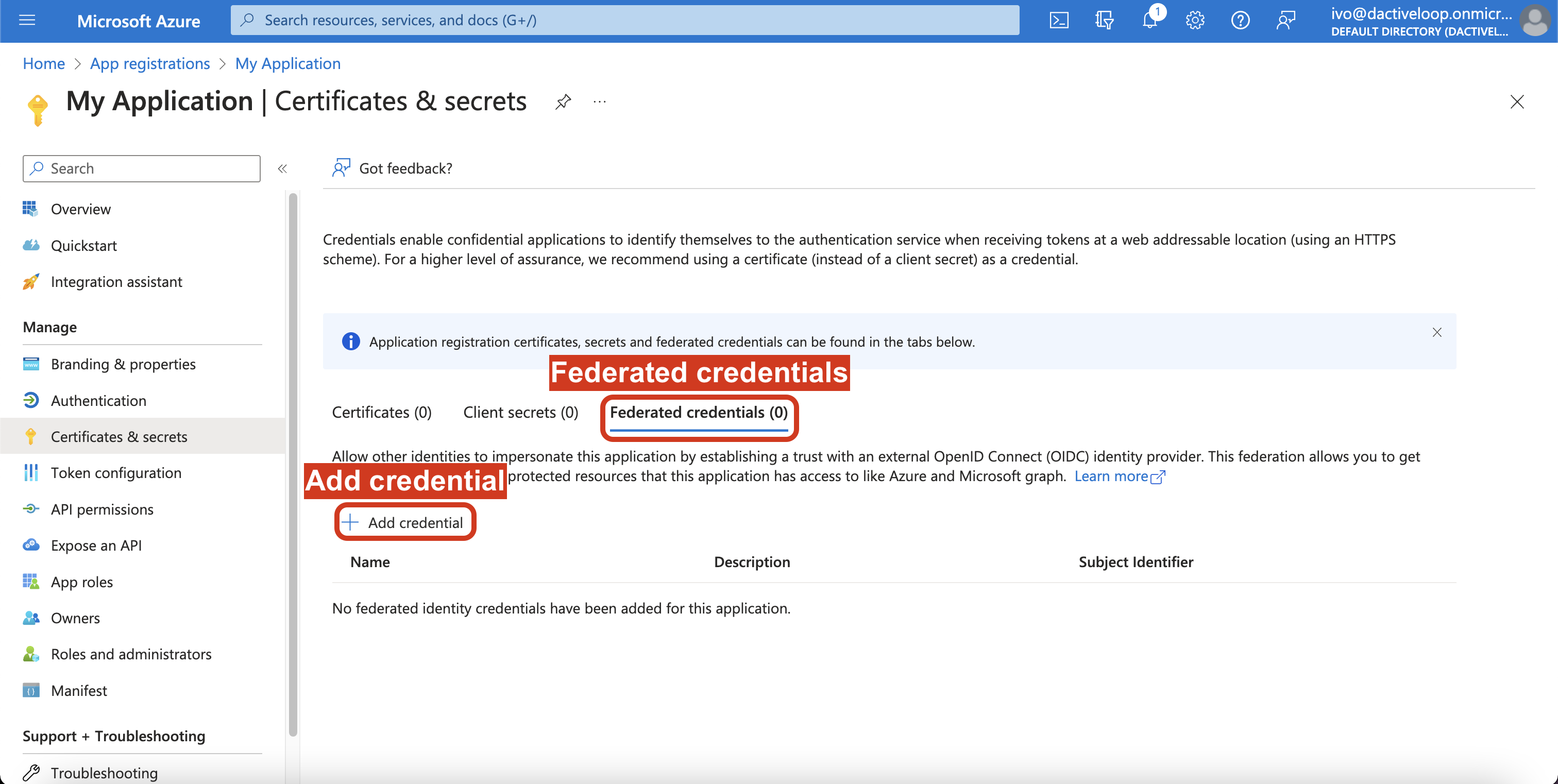
6\. Click on `Federated credentials` and `Add credential`.
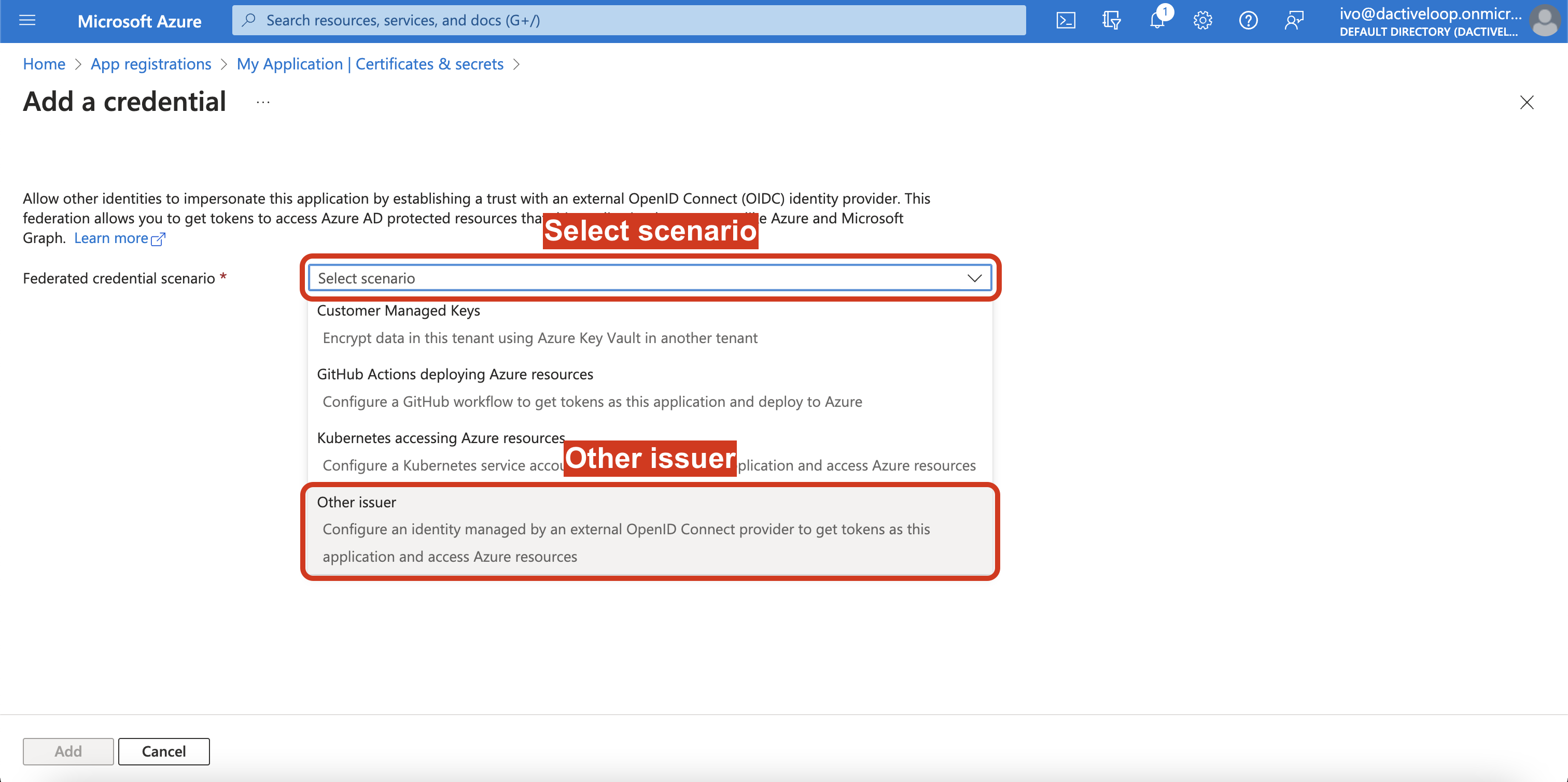
7\. Click on `Select scenario` and select `Other issuer`.
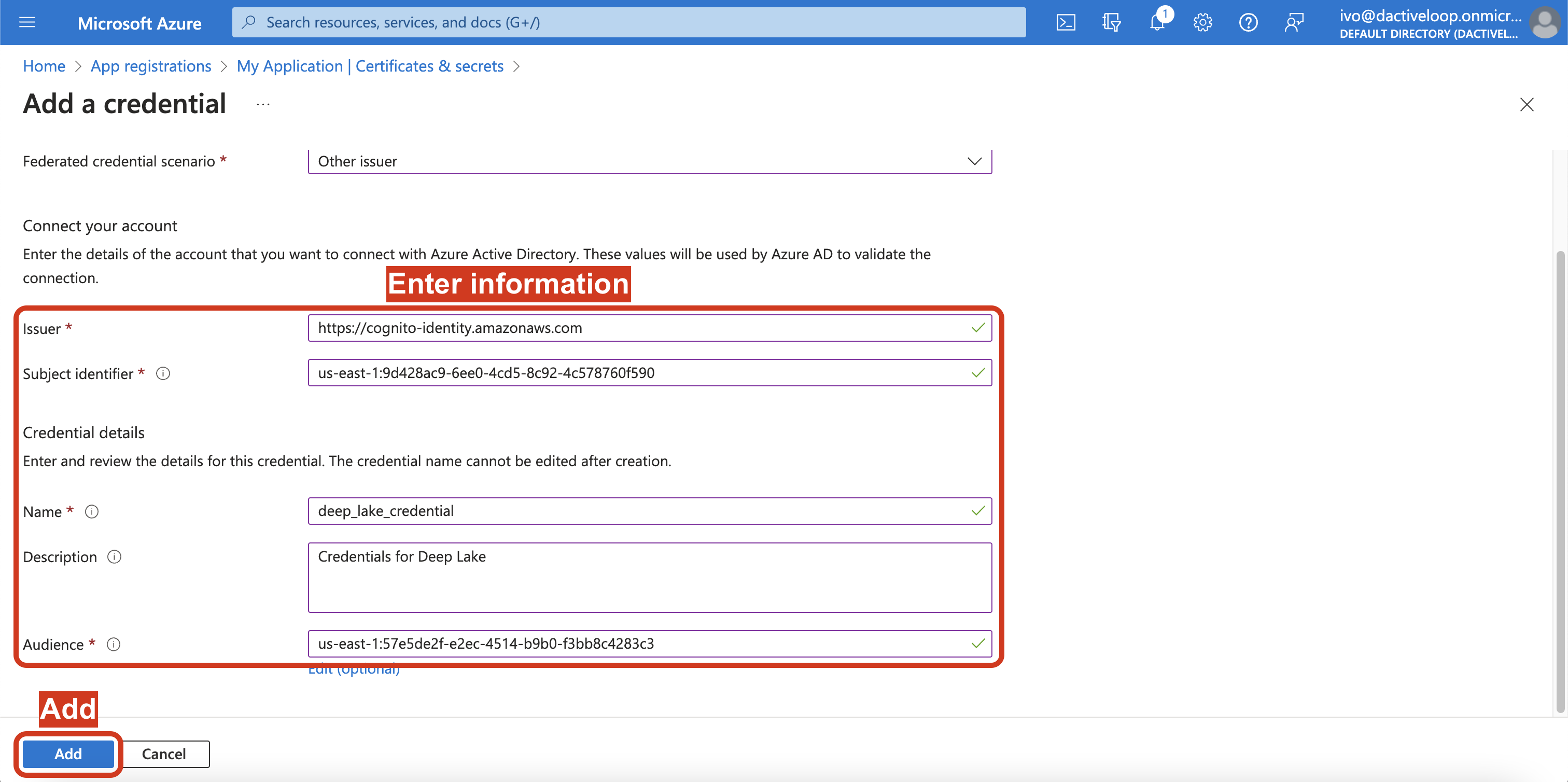
8\. Enter the following information in the form, and click `Add`.
* **Issuer:**
* This is for trusting Activeloop's Cognito issuer. There's no need to create AWS Cognito by the user.
* **Subject identifier:** us-east-1:7bc30eb1-bac6-494b-bf53-5747849d45aa
* **Name:** enter a name with your choice
* **Description (optional):** enter description a with your choice
* **Audience:** us-east-1:57e5de2f-e2ec-4514-b9b0-f3bb8c4283c3
### Step 2a: Apply the Application Credentials to your Azure storage account
{% hint style="warning" %}
Skip to 2b if you want to assign Application Credentials to a specific Azure container
{% endhint %}
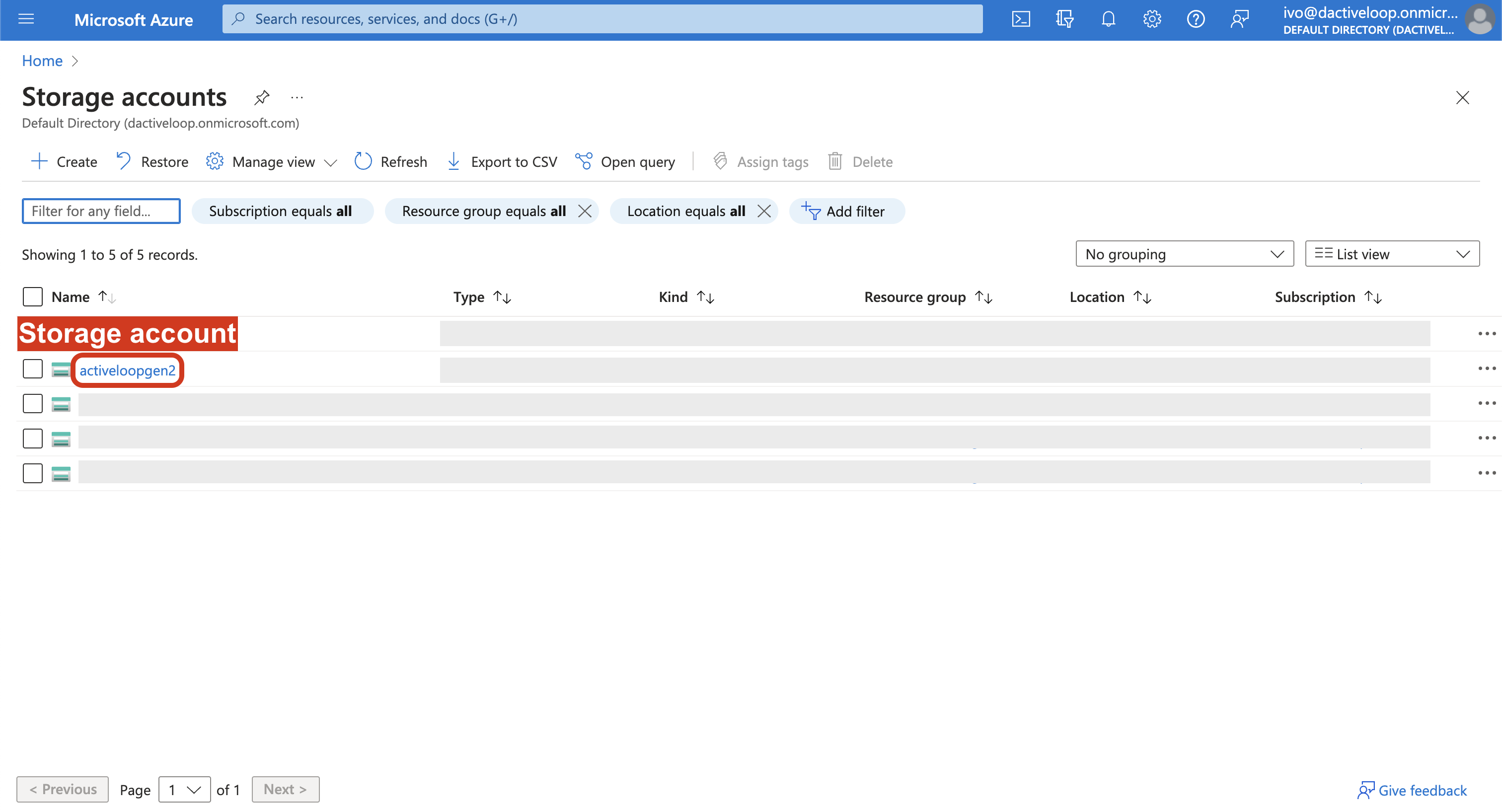
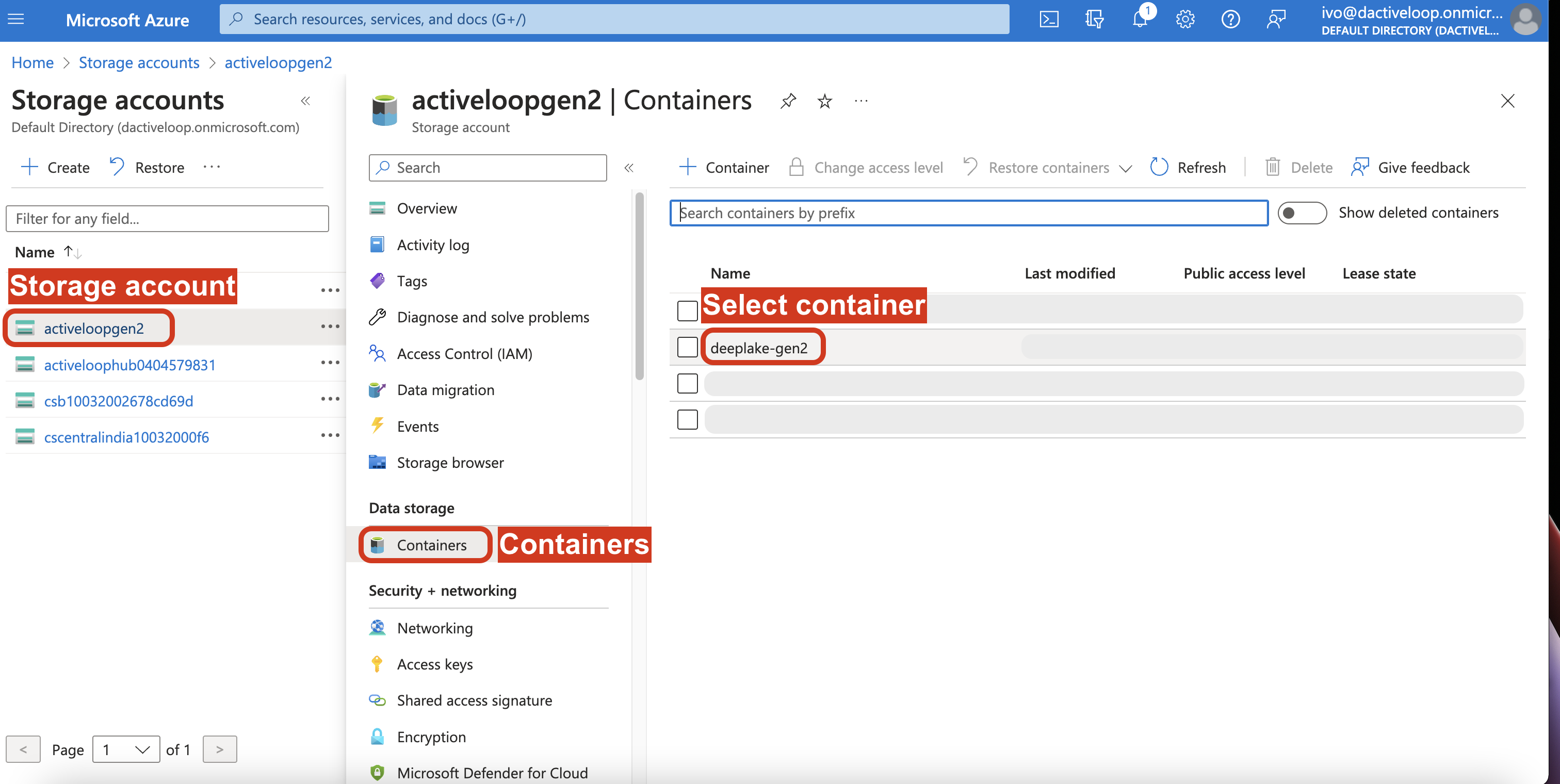
1\. Go to the `Storage accounts` page in the Azure UI, which can be done by searching "Storage accounts" in the console.
2\. Select the `Storage account` to which you want to add Application Credentials.
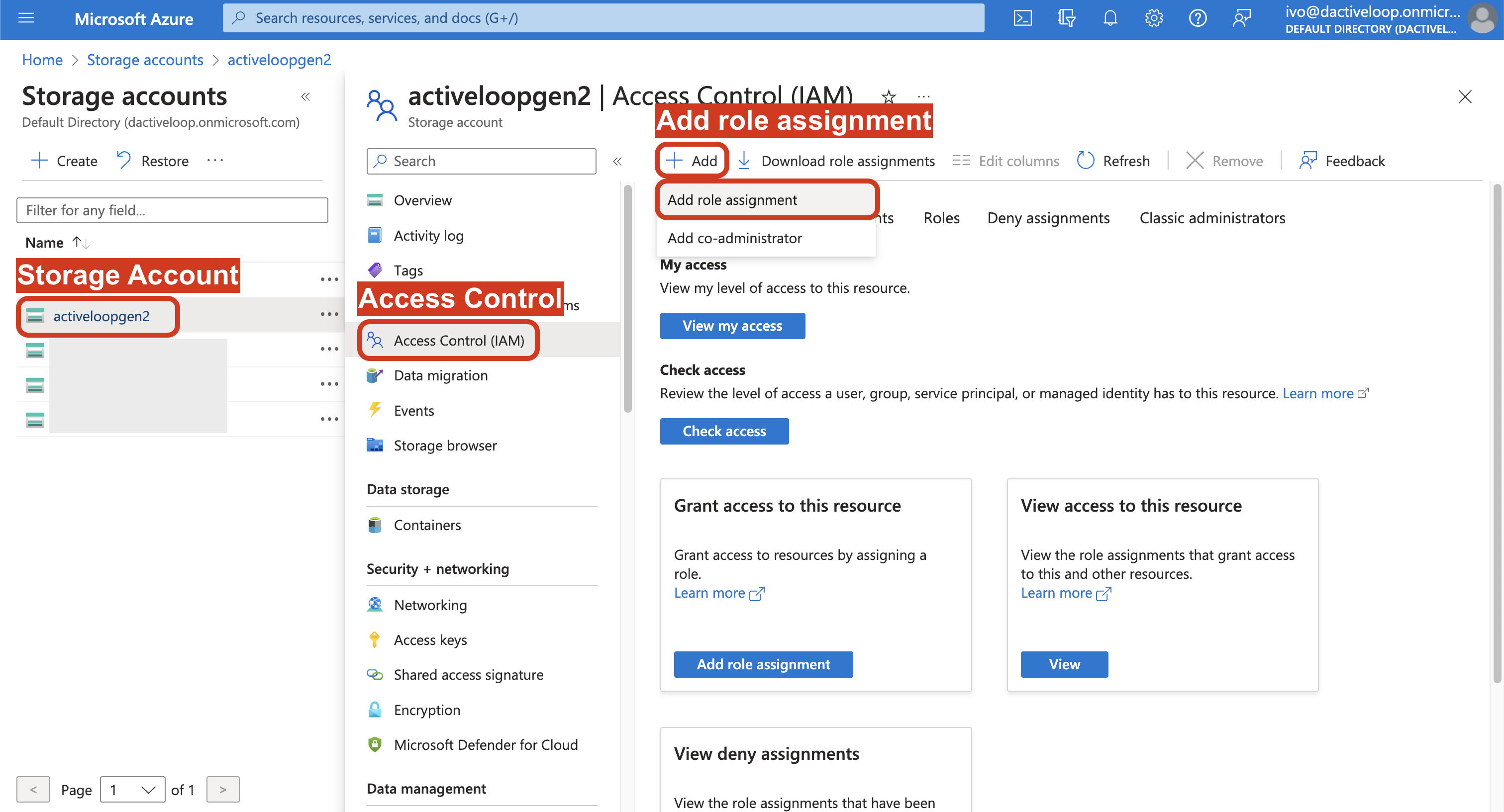
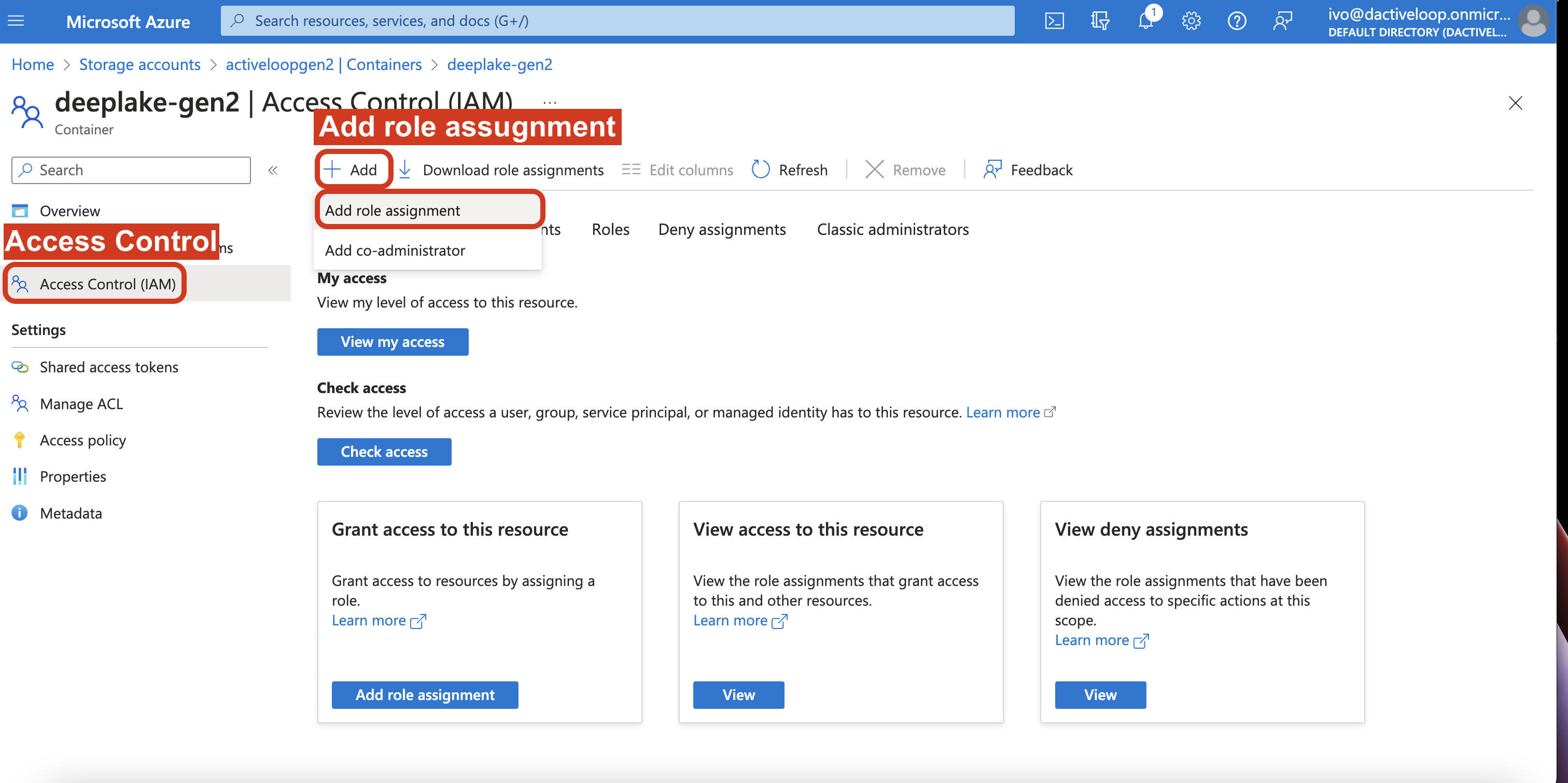
4\. Select `Access Control (IAM)` and click `Add`, and `select Add role assignment`.
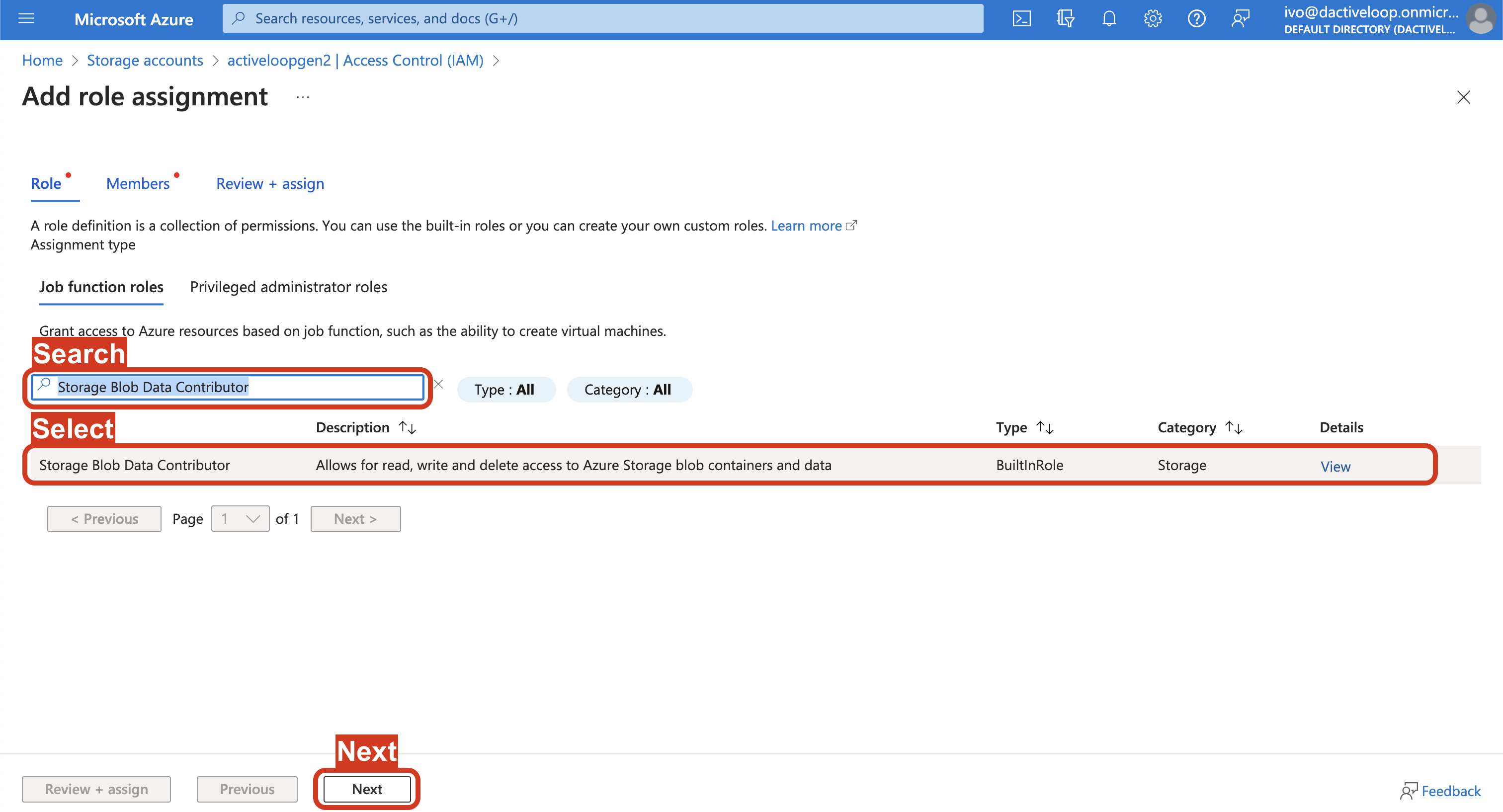
5\. Search and select `Storage Blob Data Contributor` under the role names and click `Next`.
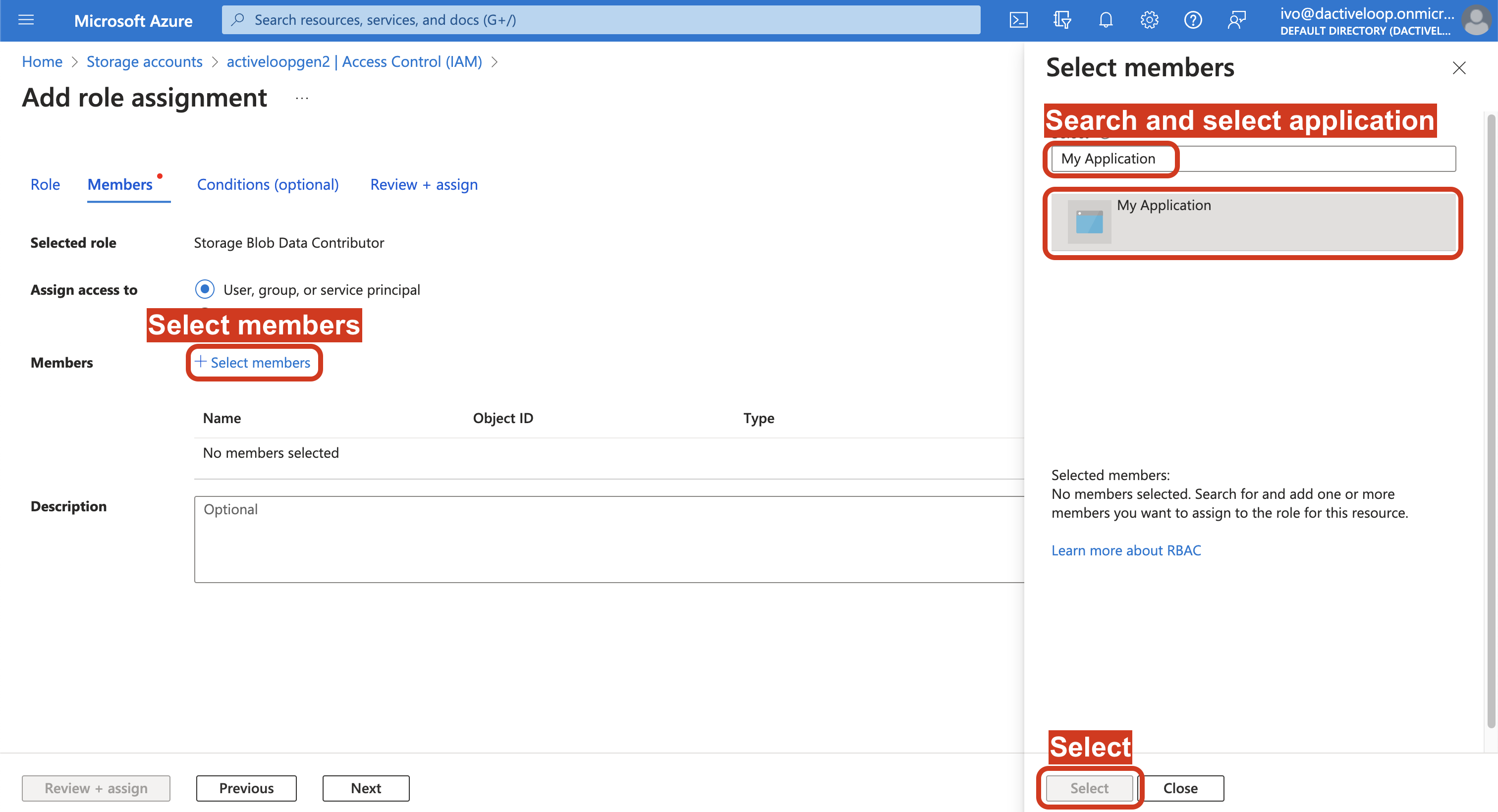
6\. Click on the `Select members` link, and in the tab that opens up on the right, search by name and select the application you created in Step 1. Click `Select` at the bottom of the page.
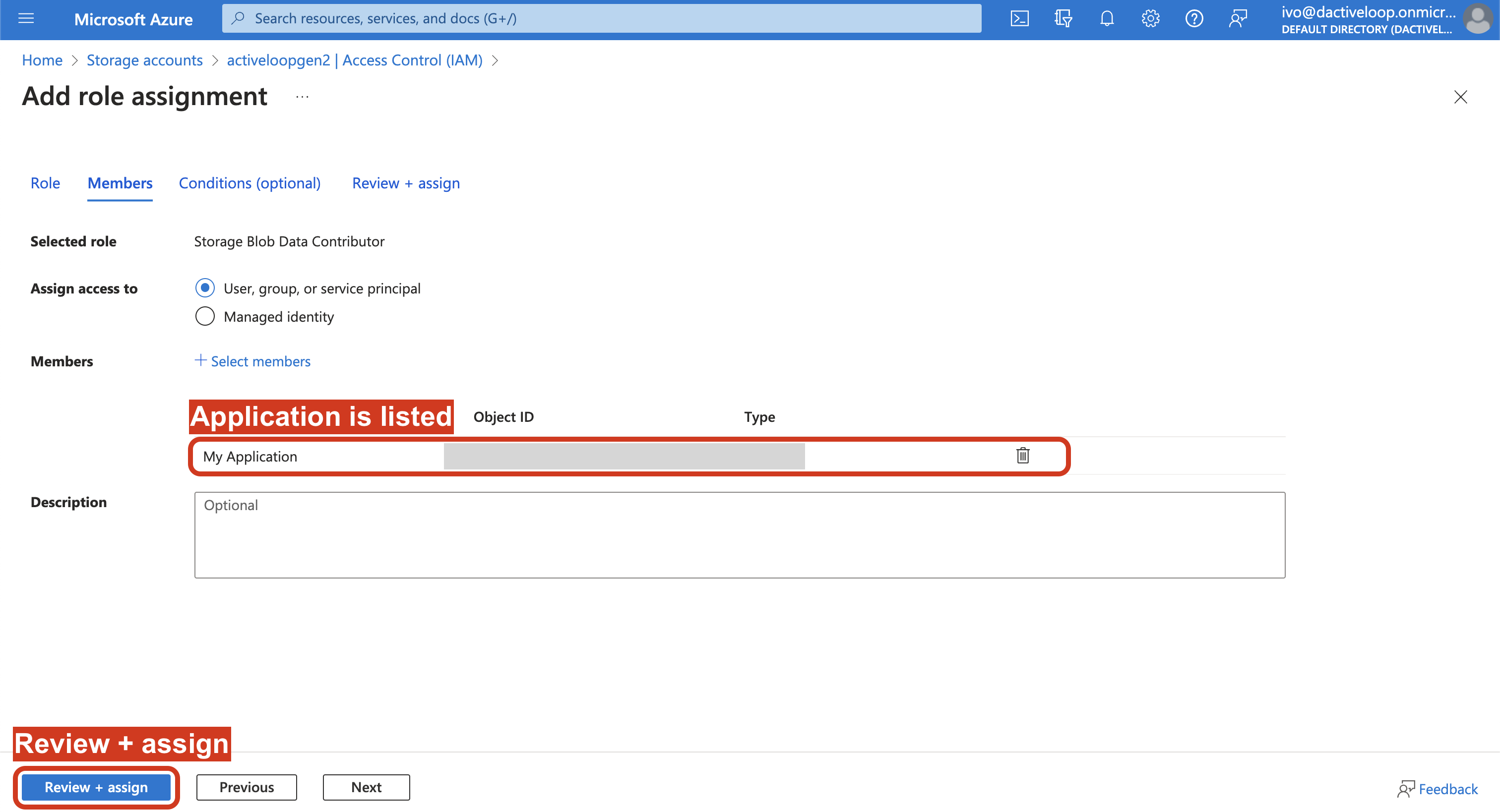
7\. The application should appear in the list of Members, at which point you can click `Review + assign`.
### Step 2b: Apply the Application Credentials to a specific Azure contained in your Azure storage account
1\. Go to the `Storage accounts` page in the Azure UI, which can be done by searching "Storage accounts" in the console.
2\. Select the `Storage account` to which you want to add Application Credentials.
3. Select the `Container` to which you add the Application Credentials.
4\. Select `Access Control (IAM)` and click `Add`, and `select Add role assignment`.
### IMPORTANT TO PERFORM STEPS BELOW TO COMPLETE 2b - PLEASE DO NOT SKIP
5\. **Perform substeps 5-7 from Step 2a above, in order to add the Application Credentials to the Container**
6\. **Execute the steps in Step 2a above on your Storage Account, except set the Storage Account Role Assignment to `Storage Blob Delegator` in substep 5.**